Valentina Petrovna was sixty-five years old. On March 14, in Samara. And her son-in-law was sitting in Ann Arbor in front of a glowing screen and couldn’t send a single line for twenty minutes already.
He wrote this: «On the day of the birth, Valentina Petrovna».
Natasha read through the shoulder, kept quiet, and said that mom would understand. Daniel crossed out the line.
Seven years and not a single letter

They have been married for seven years. Russian is able to hold a conversation at a level of «give,» «thank you,» and understanding for a third of the conversation, which he is even a little proud of. He learned to read Cyrillic at the wedding so that he could read the signs in Samara.
And I haven't even tried writing it once.
The Latin script in the greeting looks like a line from a declaration. The meaning will come through; the warmth will remain somewhere along the way. There is also something smaller that Daniel learned about later: there is no single way to write such a notation at all. The sound «sh» changes from shch to sch, from shh to shh, depending on which rule the person is using and in which year it was written. Natasha’s name on her passport, on her bank card, and in her phone book was written in three different ways, and he considered this to be the norm for many years.
Moreover, a sixty-five-year-old man who has been reading Cyrillic all his life understands the Latin text by letter by heart. Slowly. Like a child in the first grade.
Daniel searched for "russian keyboard setup" and found a hundred pages with identical screenshots.
The easy way, which the Internet recommends
It turned out that you have to choose from the second page, and it’s hard to undo that choice later.
The Russian keyboard is called YZUKEN, after the six symbols in the upper letter row. This arrangement came from typewriters from the late nineteenth century; by the mid-fifties, the scheme had evolved into its current form, and since then it has remained on any device sold in Russia. It is designed mercilessly. Where the finger is accustomed to A, the letter «f» is located. Under S is «y». Almost no letter matches the sound of the one drawn on the plastic.
The systems also offer a second option under different names. Windows calls it Russian — Mnemonic. macOS has been calling the same thing Russian — Phonetic for years, and in recent versions it is signed as Russian — QWERTY, which is why half of the online manuals are now lying. The meaning is the same everywhere: Cyrillic is arranged according to the sound, with «a» for «a», «b» for ‘b’, and ‘f’ for ‘f’.
The forum Daniel stumbled upon recommended this particular method. The logic is sound: you can start printing from the very first evening.
He took it.
Two weeks later he came to Natasha’s friends in Cleveland, sat down at their computer to show them the photos, and discovered that he couldn’t print at all. The Russian keyboard had a real layout with letters on the keys spaced out like this: YUKUKEN. Everything that his fingers had learned was exactly the same on his own laptop.
This is where the cost of the solution becomes apparent. Phonetic schemes are not standardized by anyone; Windows and macOS have different ones, and every Russian keyboard in the world, from computers owned by relatives to rental cars, is labeled the same way and not by sound. For those who write in Russian three times a year, all of this is irrelevant. But if the correspondence is to be constant, it’s better to swallow the difficult month at once.
Daniel switched schools in April. He fought a lot.
A few minutes in the settings
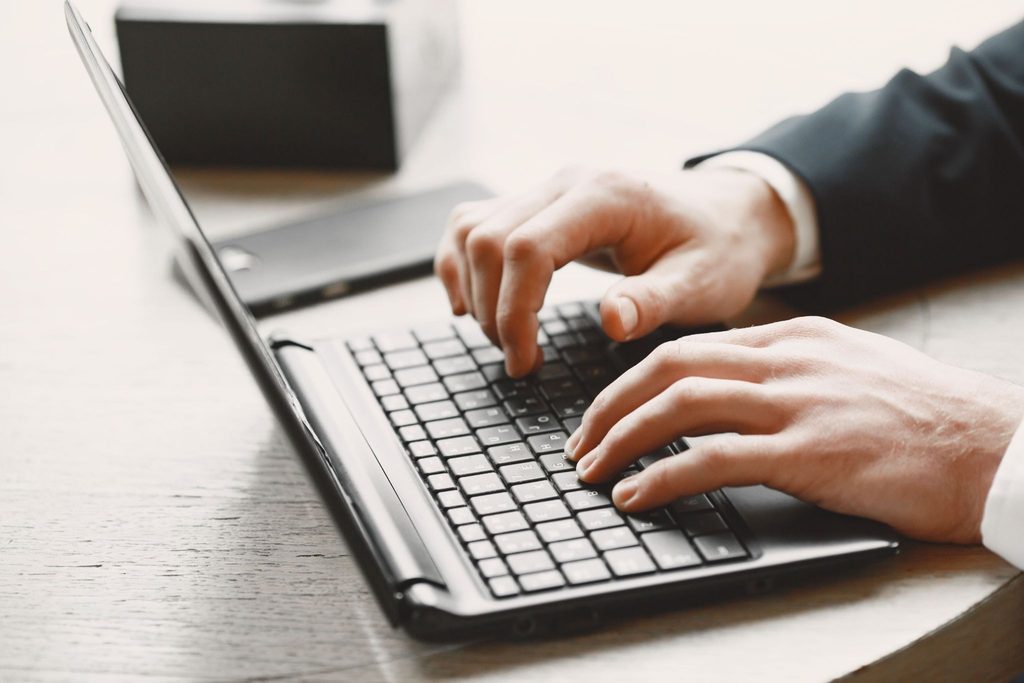
The installation itself takes no more than a couple of minutes anywhere, and all four systems are done with standard equipment, without the need to purchase anything. The names of the points have changed over the years, so the links below are for the current versions.
Setting up the Russian layout
Choose a system. The names of the items are given according to the current versions; for older versions, they may differ.
- Open the settings by pressing Win and I together.
- Go to the «Time and Language» section, then to «Language and Region.».
- Click «Add language,» find Russian, and install it.
- Click the three dots next to the Russian language and open «Language settings.».
- In the «Keyboards» block, click «Add keyboard.» The standard scheme is signed as «Russian,» phonetically as "Russian"—Mnemonic.
Switching. Win and space bar. The old combination, left Alt with the keycode, works almost everywhere, but on some systems you have to enable it in the input settings.
Do not confuse it with the interface language: it changes with a neighboring button in the same window, and then the entire system speaks in Russian.
- Open the system settings and select «Keyboard».
- In the input source block, click «Change.».
- Click the plus button and select Russian.
- Among the Russian versions, choose Russian – PC if you also work on Windows. The Russian variant is a Mac-style keyboard with its own punctuation marks, while the Russian – Phonetic version is signed as Russian – QWERTY in the latest versions.
- Turn on the display of the input menu in the menu bar to see the current language.
Switching. Ctrl and spacebar, or the globe key in the bottom-left corner.
The separator in the names of Maco layouts is a middle colon, not a dash. This is important when searching through the system logs.
- Open «Settings», then «Main».
- Select «Keyboard», then «Keyboards».
- Click «New keyboards» and select Russian.
- The order of the keyboards in this same list determines the order in which they are selected when typing, so the one you need should be raised higher.
Switching. The globe key next to the spacebar. Holding it down opens the list in its entirety.
The layout here is always YCUKEN; phonetic Apple does not offer an alternative. The hard sign is opened by holding the soft Y, and the letter «ё» is held by «e».
- Open «Settings», then «System».
- Select «Language and Input», then «On-screen keyboard» and Gboard.
- Open «Languages» and click «Add keyboard.».
- Select Russian and browse the proposed layout options; the list is often wider than on the iPhone.
Switching. Press the globe key or long press the spacebar.
Different manufacturers call the options in the menu differently. On Samsung devices, the section is called «General Settings,» followed by «Language and Input.».
One mistake deserves a separate mention, because newcomers encounter it regularly. You can add the input language and change the interface language in the same window; the buttons are right there. The one who makes a mistake gets a system that speaks to them entirely in Russian, including the menu, notifications, and error messages. Everything comes back from there, but it takes a half hour of nerves.
The wife's laptop and the missing wrist
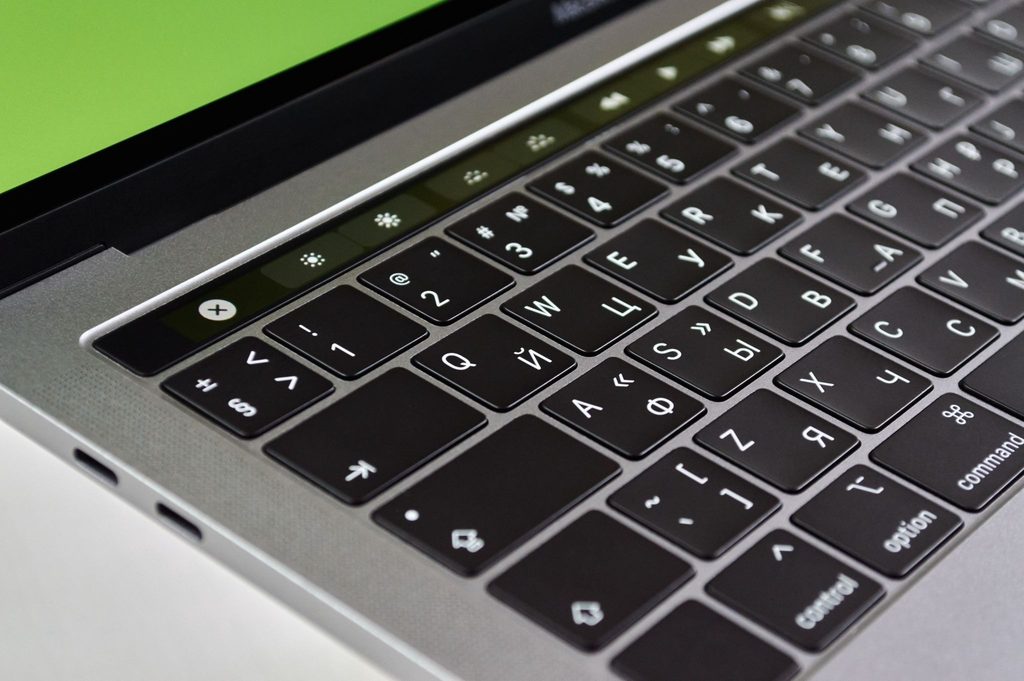
By May, Daniel was doing reasonably well and decided to finish writing his Easter greeting on Natasha's MacBook while his own was charging.
The first sentence broke at the comma.
Apple has been supplying its own Russian keyboard since the mid-1990s. The letters on it are the same as everyone else’s; the punctuation marks have moved: the period and comma have moved to the digital row and are now typed with a code; the letter «ё» has moved from its place; the hyphen is no longer where the hand is looking for it. On Windows, the period lives to the left of the right hyphen; the comma is typed there with a code. Two sets of movements, one head, and the head keeps stumbling.
It fixes one line in the list when installed. Among the Russian options on Mac is Russian – PC, which repeats the Windows letter-by-letter position and the sign in the sign. Natasha didn’t know about this line and typed it as she was used to, but Daniel, having set it for himself, unexpectedly found himself a family expert.
A phone without a solid signal
In the summer, the correspondence moved there, where it lives with everyone else.
On the iPhone, the Russian keyboard is the same and always YTCUKEN; Apple’s phonetic variant does not provide any options at all. Gboard has a wider list of keyboard layouts for Russian than the iPhone, so when adding a language, it’s worth checking the suggested options.
Daniel was writing about the trunk volume and got stuck.
There was no hard sign on the screen. It was soft, but there was no hard sign, and he pressed the keyboard three times before asking his wife. He hides under the soft key with a long press. The letter «e» is also revealed by holding down the «e.» The word «tour» is typed as o, b, holding down the soft sign, e, z, d, and knowing this habit turns a supposed glitch into a gesture for a second.
The auto-replacement struggled at first to work properly. It stubbornly substituted English words where a Russian word was typed, because the dictionary was connected with the active keyboard, and the phone still considered the previous language to be the primary one. After a week, it calmed down on its own.
Ghbdtn in a family chat
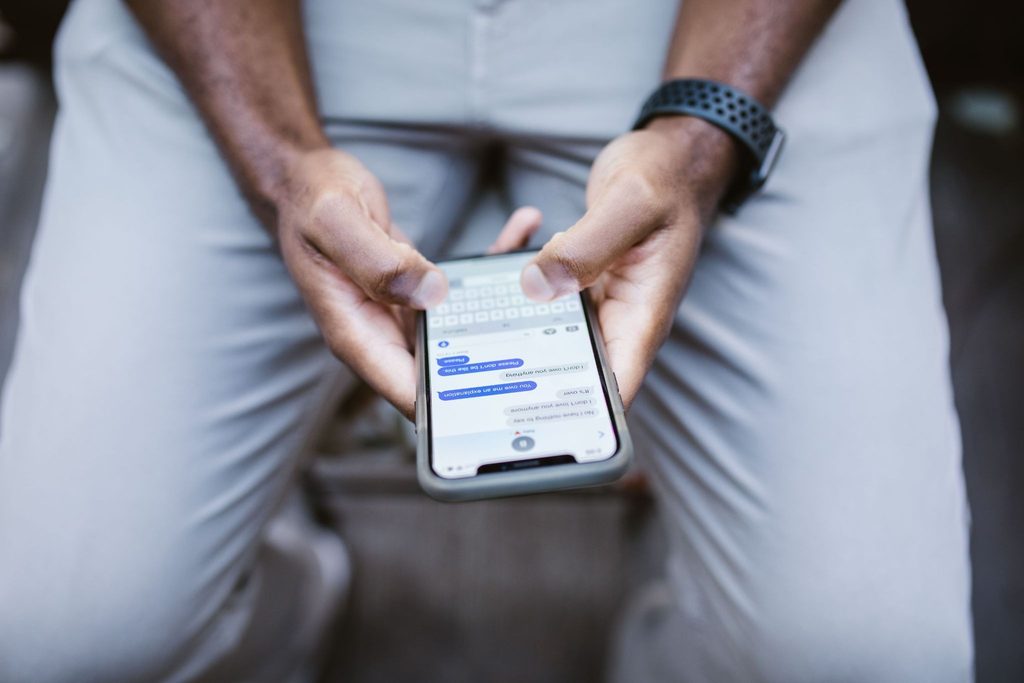
In August, he sent the word «Ghbdtn» into the general chat with Natasha’s family.
Everyone laughed, including Valentina Petrovna, who sent three crying smiley faces in response. This happens to everyone who writes in two languages, because the language indicator is small, the attention is taken by the text, and the opening comes after half a line. Sometimes after a paragraph.
A short word is easier to delete. The converters that are full of the browser help with the paragraph: you insert the text, the program recalculates it by key positions and gives the readable result; it works both ways. There are also programs that constantly monitor the input, they notice nonsense and switch the language themselves, and they also hold a hot key for the last word. They have their own character. From time to time, such a program switches where you didn’t ask, and it’s especially bad when it comes to passwords.
Daniel went with the other option. Windows has a setting that allows you to keep your language for each window, and since then the browser has remained in English, and the messenger in Russian.
Brackets for a New Year toast
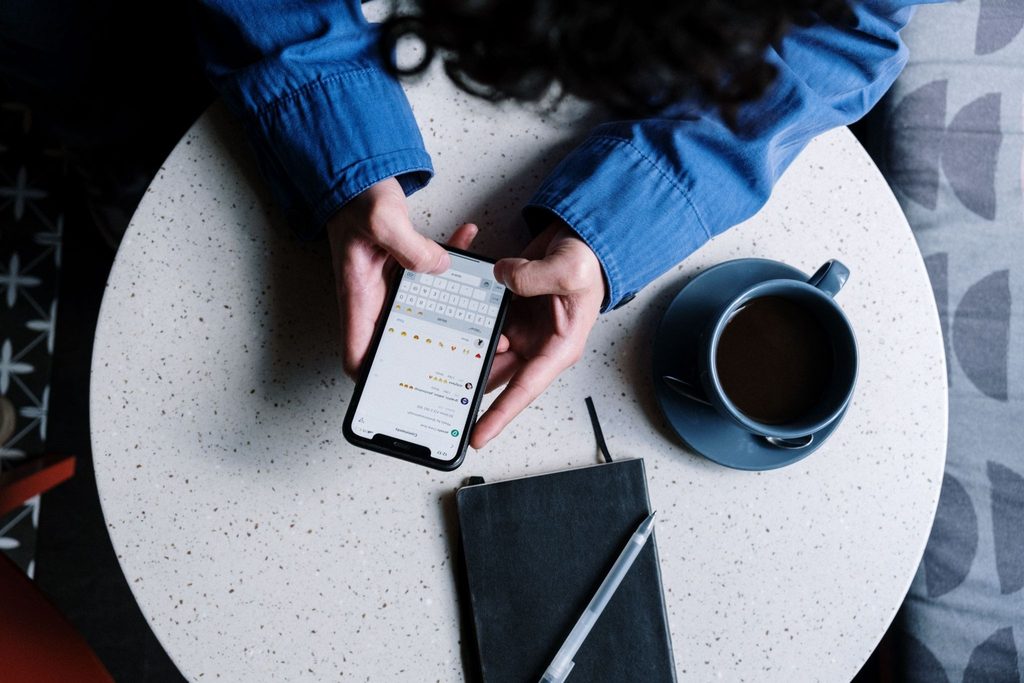
By December, he volunteered to write a toast that Natasha would send to her relatives in advance.
It turned out that the text still doesn’t look Russian, even though all the letters are correct. It was a matter of details. In Russian, the brackets are made with bows, not straight English ones, and the long dash instead of a hyphen. There are no dedicated keys for them on standard layouts, and they are accessed using codes that are easier to keep handy than to remember.
Characters that are not present on the keys
The codes are entered on an additional block of digits when the Alt key is pressed. On a laptop without such a block, use the insert symbol via the editor menu.
-
"
The opening parenthesis with an asterisk
Windows: Alt and 0171
-
"
The closing loop with a bow
Windows: Alt and 0187
-
-
Long dash
Windows: Alt and 0151. It is placed between the subject and the predicate, as well as in direct speech.
-
-
Short dash
Windows: Alt and 0150. We need numerical ranges, for example 1941–1945.
-
a
The accent mark
It is not placed over a separate symbol, but over the already typed vowel. Place the cursor immediately after the letter and type Alt and 0769. There is another way to work in Word: type after the vowel. 0301 and press Alt with a Latin X.
MacThe symbol panel opens by pressing Ctrl, Cmd, and space. The found character remains selected and can be inserted with one click.
WordOnce the text language is set to Russian, the auto-replacement itself converts the straight quotes into ellipses right when you type.
The accent mark from the same handout came in handy later and unexpectedly for Daniel. Natasha started sending him lists of words with accents so that he wouldn’t say «zvOnit,» and it turned out that this accent was added on top of the already-written vowel, so he couldn’t insert it as a separate symbol.
The stickers he never bought
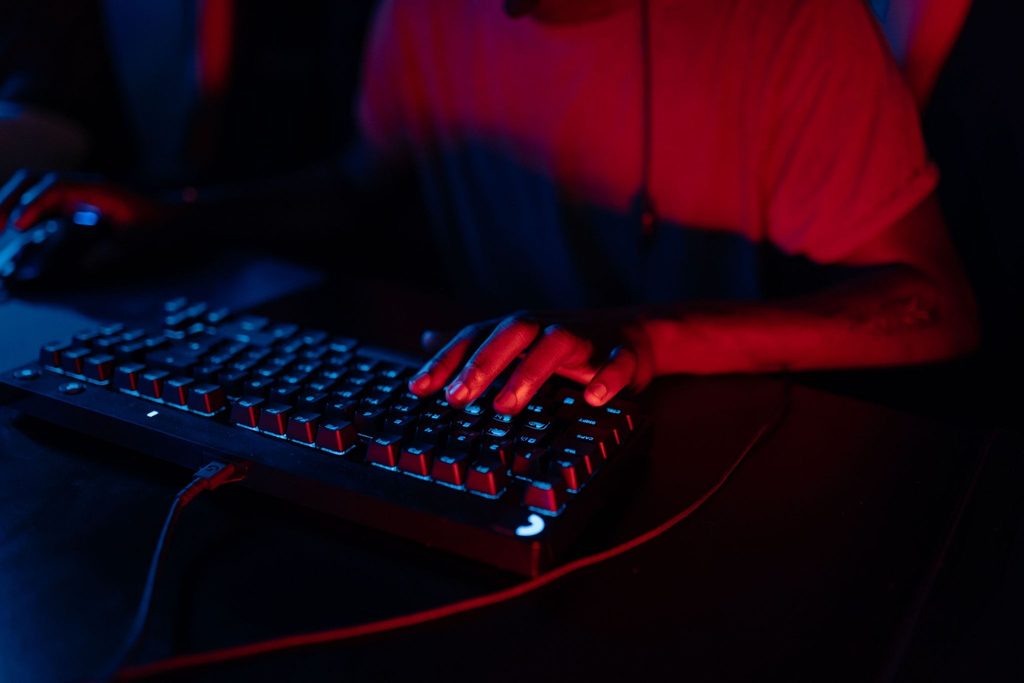
The plastic under the fingers remained English the whole time.
The stickers cost pennies and are sold everywhere. The transparent ones are applied over the Latin letters and add the Cyrillic characters on the side, while the opaque ones cover the key completely and are suitable for those who type English by sight. Both types wear out under the fingers in a few months and start to curl up at the edge. The engraving lasts for years, is made in a workshop and costs quite a bit.
Daniel didn't buy anything.
Both Windows and macOS have a built-in onscreen keyboard that displays the current layout in full and highlights the keys. It opens in a couple of clicks, sits in the corner, and doesn't come off anywhere. It lasted for a month on it, then I caught myself not looking at that corner for a week.
For those who need it three times a year
It’s worth mentioning separately those who don’t need any of this at all.
It’s not necessary to set up a keyboard for someone who writes in Russian a couple of times a year. Online keyboards work directly in the browser: the scheme is drawn on the page, the letters are typed with a mouse, and the finished text is copied anywhere. This also saves you trouble if you’re using someone else’s system, where you don’t have permission to install anything. For example, at a hotel or library.
The Russian keyboard is right here
Use the mouse or the regular keyboard: the key on which the required letter is located will light up. The Latin letter that is drawn on the key is written in the corner of each key.
Here is the standard YUKEN in the way it works on Windows. The dot is at the same place on the slash, and the comma is on the same place with Shift. On the Mac layout, Apple places these two characters on a digital row, so the keyboard feels different there. The key with the arrow marks the opening parenthesis, and with Shift pressed, the closing parenthesis.
Many people take voice input for granted as the final decision. Typing in Russian works decently if you select the language in the keyboard settings and speak in silence. It falters unpredictably: punctuation marks are spoken out loud, proper names are recognized intermittently, and on a working TV set it becomes a mess. And the person dictating the text doesn’t remember a single letter at all. Typing with your fingers also teaches you spelling, and the sound of this side effect doesn’t make it easy. However, speed comes with practice, and it’s easy to speed it up. keyboard trainer, where the race turns into a race against time.
Home
The Russian keyboard is installed by default in a few minutes; you don’t need to buy a separate Cyrillic keyboard for this. The choice is made before installation: the standard YUKEN is heavier at the beginning and is suitable for everywhere; the phonetic scheme is easy to learn and binds you to your machine. Both Windows and Mac owners should choose the Russian version for Mac – PC – otherwise the dot and comma will be lost. On the phone, you can replace the hard sign and the letter «ё» with a long press on adjacent keys. The characters on the plastic are easier to replace with the built-in on-screen keyboard, and the stickers can be bought later if you don’t remember them. If you need Cyrillic three times a year, an online keyboard in the browser is enough.
Where the technology ends
Daniel put together the greeting for next March himself, in ten minutes, with the Christmas trees and the right wording.
And I got stuck again, this time in a different place. It turned out that it’s more difficult to politely ask a mother-in-law for help than a wife, that the phrase that sounds warm in English translates dryly, and that the keyboard doesn’t offer any help in this regard.
At Palme School, classes take place online in small groups. Children from four to seventeen years old are taught different programs; those whose native language is Russian are taught separately, and those for whom the language is new are taught separately. For those over seventeen, a separate program is available. Russian language course for adults, where the exact same task is solved that neither the keyboard nor the applications can solve. You can learn about the format on two free lessons. In the first method, the tutor determines the level and selects a group; in the second, you take part in a real class with a teacher; the final decision is up to you.
Frequently Asked Questions
Is a separate keyboard with Russian characters necessary?
No, the physical device has nothing to do with it. The layout is determined by the operating system and determines which symbol appears on the screen, regardless of what is drawn on the key. People buy a Russian keyboard for the convenience of the eyes, not for the ability to type at all.
Which layout should a beginner choose, YCUKEN or phonetic?
It depends on how much writing is involved. With infrequent correspondence, the phonetic scheme saves weeks of getting used to; the letters stand out under keys with similar sounds. With regular typing, it’s better to start with YTCUKEN right away: it’s available on any Russian keyboard in the world, and switching to it after a year is noticeably more difficult than starting with it.
Where in the Russian alphabet is the letter «ё»?
On Windows, it takes up a separate key on the left in the top row, the same place where the tilde is on the English layout. On Apple’s own layout, it’s in a different place, to the right in the second alphabetical row. On the phone, there’s no separate key; the letter is accessed by long-pressing on the «e.».
Why are the period and comma symbols on the Mac not where they are on Windows?
Because Apple has been using its Russian layout for many years, where punctuation marks are moved to the digital row and are typed with a cipher. The letters themselves remain the same; it’s the marks that differ. Those who work on both systems should choose the Russian option when installing – it repeats the usual positions.
How do I switch the language if the keyboard shortcut doesn't work?
There are two combinations that work on Windows: Win with a space and left Alt with a modifier; the latter is disabled by default on some systems and is turned on in the input settings. On Mac, Ctrl with a space or a key with a globe works. If that doesn’t help, the language is always switched with the mouse via the indicator in the taskbar or in the menu bar.
Is it possible to print in Russian on someone else's computer?
Yes, there are online keyboards that work in a browser without installation and without administrator rights. The Russian scheme is drawn on the page, the text typed is copied into a message or into a messenger. The method is slow; for a short message from the hotel it is sufficient.
Does voice input replace typing?
It’s a good substitute for short text messages if you choose Russian as the language in the keyboard settings and speak in a quiet room. The punctuation marks when dictating are spoken out loud, and names and titles are recognized with uncertainty. And it’s worth remembering that dictation doesn’t teach how to write: spelling is learned only by typing with your hands.